
Set up the desk, then run the day
One laptop runs a registration desk: scan, check in, print the badge. This manual splits along the only line that matters onsite — what you set up once beforehand, and what you look up with a queue in front of you.
- Version
- 0.1.2
- Runs on
- Windows 10 64-bit+
- Install
- no admin rights
- LAN lanes
- up to 3
Not installed yet? Download it from the desktop check-in page.
What is in here
- Install
- Sign in and pick the event
- Sync the roster
- Printer and badge template
- Turn phones into scanners
- Prepare the offline pack
- Desk settings
- A normal check-in
- The code will not scan
- They are not on the list
- Printing badges in bulk
- You checked in the wrong person
- Handing out gifts
- The network drops
- Leaving the desk
Before the event
One-time setup, for whoever prepares the machines. Work through it in order; nobody on the floor needs to touch any of it on the day.
1Install
Download the installer from the desktop check-in page and run it.
Expect a blue warning screenWindows shows Windows protected your PC. Choose More info → Run anyway. This is not a virus alert — Windows shows it for every new program it has not seen signed before, and this build is not code-signed yet.
- No administrator rights needed — it installs per user, so an ordinary staff account is enough
- About 300 MB once installed
- Any printer already installed in Windows will do
2Sign in and pick the event
Sign in with a BagEvent account that has access to the event, then select it from the list. Switch event at the bottom left changes it later.
3Sync the roster
Press Sync data to pull the full attendee list onto this machine. After that the app syncs every 60 seconds in the background — pushing queued check-ins up, pulling roster changes down — and does a fuller refresh every 5 minutes.
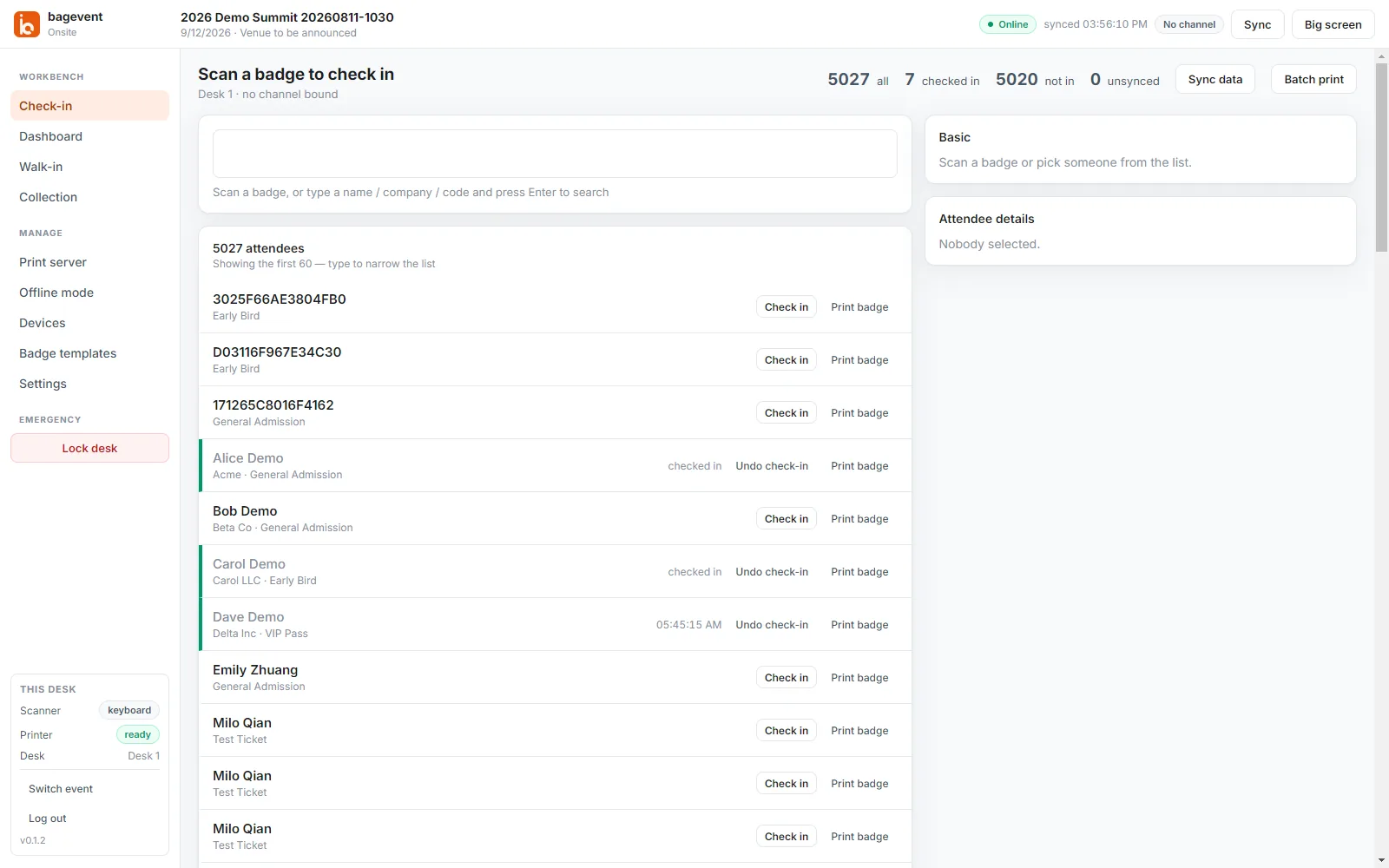
The check-in screen. The four numbers across the top are the event's live state: total, checked in, not in, and unsynced. Anything other than zero unsynced means check-ins are still waiting to reach the server. Do this before you leave the officeThe roster lives on the machine, so searching and checking in never depend on the network. But the first full pull does. Discovering at the venue that a laptop was never synced is discovering it too late.
4Printer and badge template
Open Badge templates and confirm the design for this event. Templates are built by the organizer in the web app; this machine keeps a copy, which is why badges still print with no network.
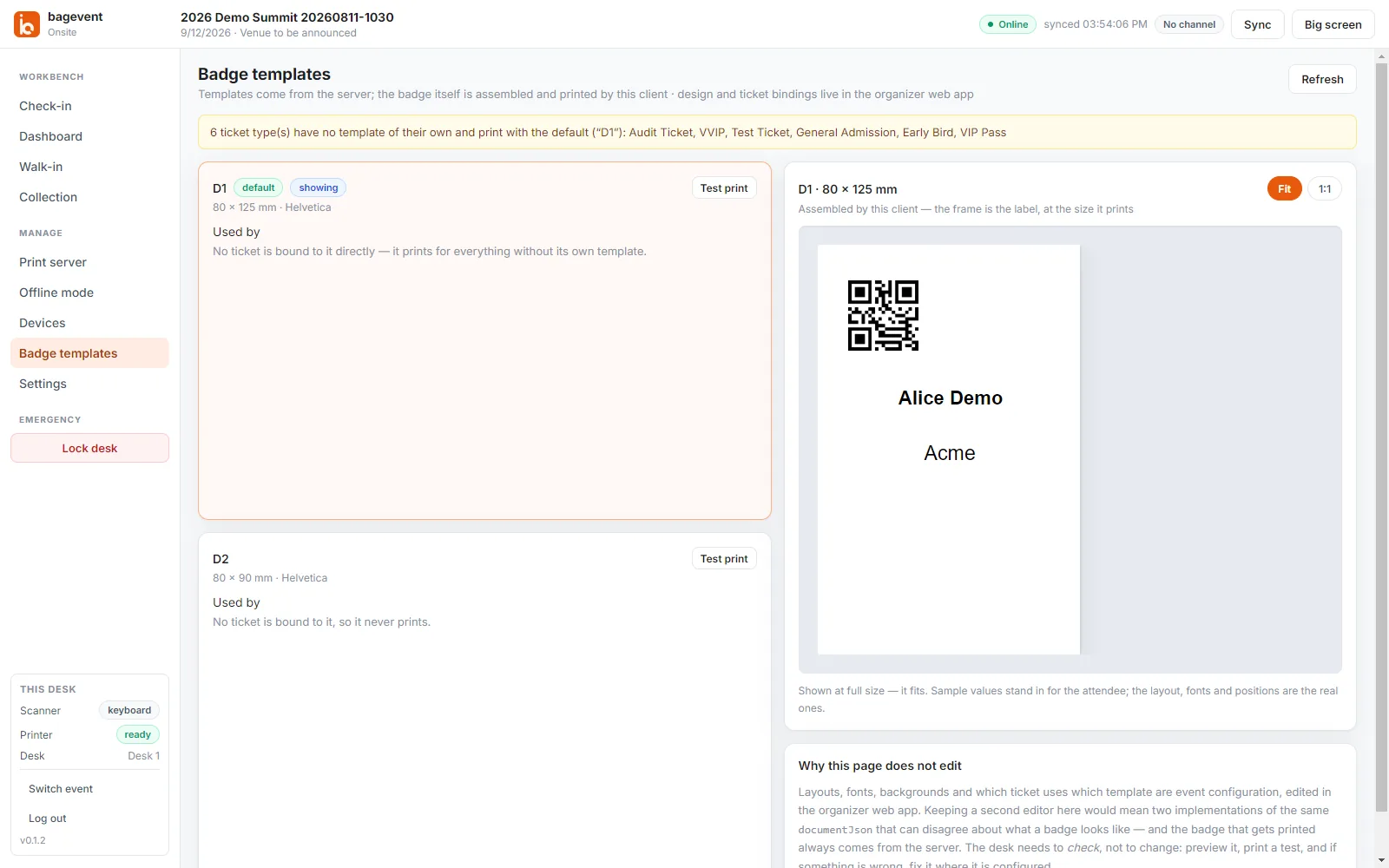
The template is cached locally, so badge printing survives a network outage. Never select a file printer such as Print to PDFThe app deliberately keeps file printers out of the print server: a badge routed into a PDF leaves the person at the front of the queue holding nothing.
5Turn phones into scanners
This PC can also host up to 3 phones or handheld scanners over the venue network, all printing to the printers attached here. Useful for splitting an entrance, or for sending someone into the queue to scan while it is still moving.
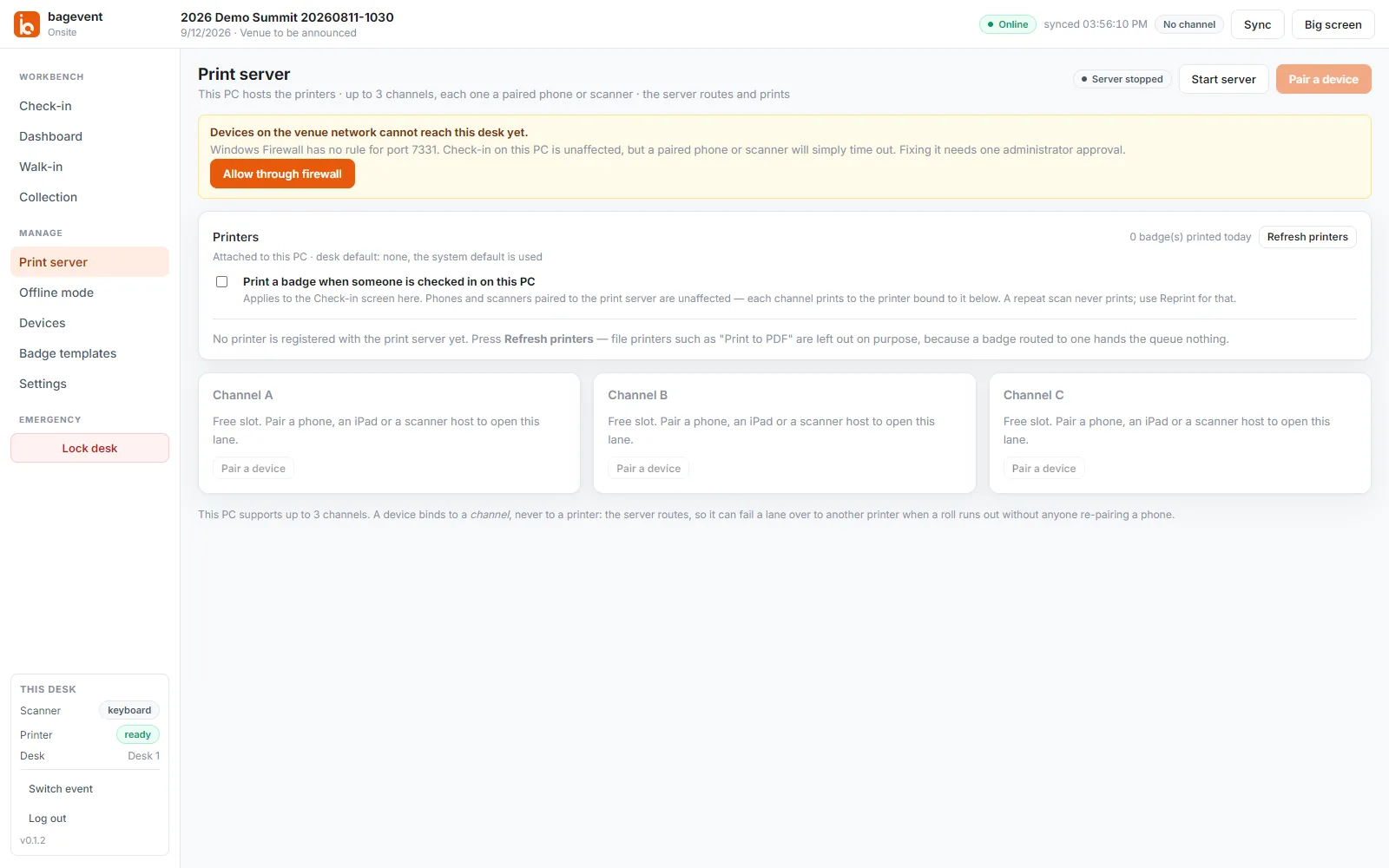
The print server screen. The yellow banner appears when Windows Firewall has no rule for the port — note that it says check-in on this PC is unaffected, which is exactly why this fault is invisible from where you are standing. - 1Press Start server
- 2If the yellow banner appears, press Allow through firewall and approve the administrator prompt. Do not skip this. Without the rule, check-in on this PC works perfectly and paired phones simply never connect — nothing on screen looks wrong
- 3Press Pair a device on lane A, B or C and scan the code with the phone
A device binds to a lane, not to a printerSo when a printer jams or runs out of labels, the server can fail that lane over to another printer without anyone re-pairing a phone in the middle of a queue.
6Prepare the offline pack
Venue networks fail. While you still have one, press Go offline to package the whole event — roster, badge templates, event configuration — onto the machine, so the desk keeps working when the network does not.
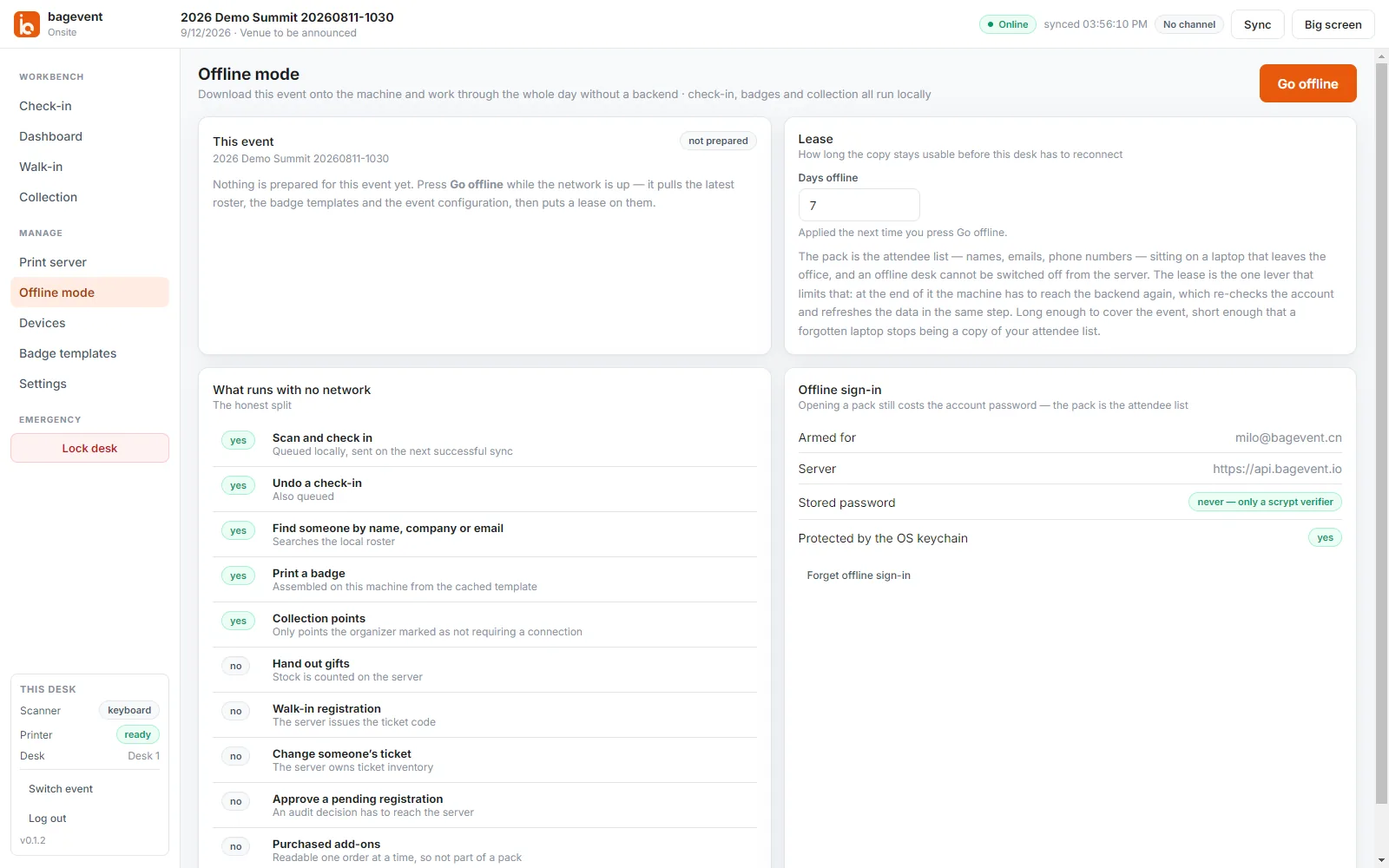
The offline screen states the limits plainly rather than promising everything. The lease at the top right defaults to 7 days: after that the machine has to reach the backend again, which re-checks the account and refreshes the data in the same step. With no network Works Why Scan and check in yes Queued locally, sent on the next successful sync Undo a check-in yes Also queued Find someone by name, company or email yes Searches the roster on the machine Print a badge yes Assembled from the cached template Collection points partly Only points the organizer marked as not requiring a connection Hand out gifts no Stock is counted on the server Walk-in registration no The server issues the ticket code Change a ticket, approve a registration no Those decisions have to reach the server An offline pack is your attendee listNames, emails and phone numbers, sitting on a laptop that leaves the office. The lease is the one lever that limits it: long enough to cover the event, short enough that a forgotten laptop stops being a copy of your attendee list. Seven days by default, adjustable.
7Desk settings
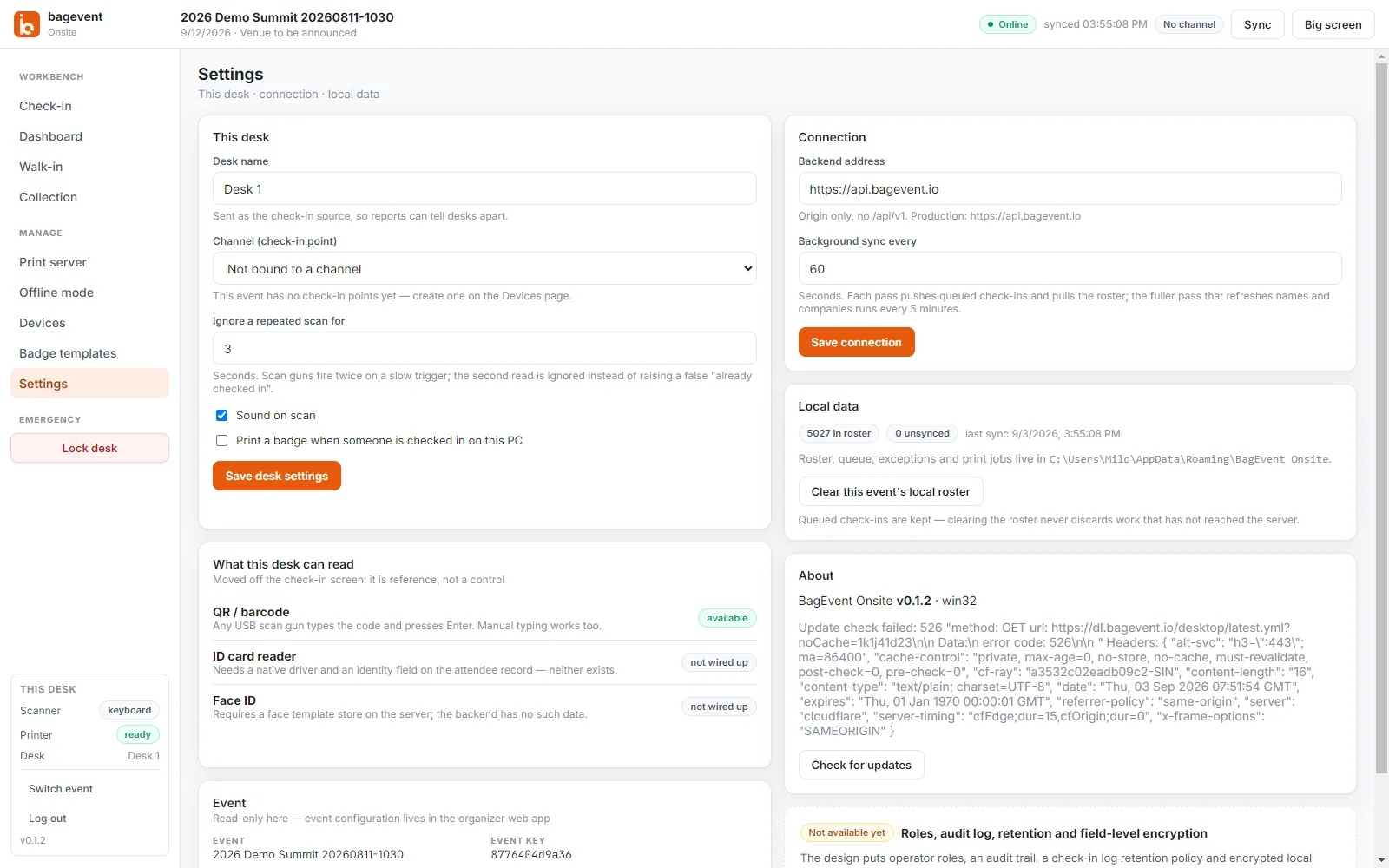
Settings. The left column is how this one machine behaves; the right is the connection and what it holds locally. - Desk name — sent as the check-in source, so reports can tell desks apart. Name them the way the floor plan does
- Ignore a repeated scan for — 3 seconds by default. Scan guns fire twice on a slow trigger; the second read is ignored instead of raising a false “already checked in”
- Sound on scan — leave it on. In a noisy hall, the beep tells the operator the scan landed faster than the screen does
- Print a badge when someone is checked in on this PC — depends on your flow. Turn it off if badges are printed in advance and laid out on the table
On the day
For whoever is standing at the desk. This part is not a sequence — it is a lookup. Find the situation you are in.
A normal check-in
Leave the cursor in the box at the top and scan the attendee’s QR code. A scan gun behaves like a keyboard and presses Enter for you.
- The row greys out with a green bar down its left edge
- The badge prints at the same time, if this desk is set to print on check-in
- Their details appear on the right, so you can check the name against the person
The code will not scan, or they have no code
Type instead, in the same box. Name, company, email and ticket code all work; press Enter. It searches the roster on this machine, so it works with no network. Then press Check in on their row.
They are not on the list
Go to Walk-in and register them there. The server issues a ticket code, and from that point they check in like anyone else.
Only the server can issue a ticket code, so walk-in registration is the one desk task that stops when the connection does. If the venue network is unreliable, put the walk-in desk where the signal is.
Printing badges ahead, or in bulk
Go to Batch print. Select a group by ticket type, by what people answered on the registration form, or by search, and print the lot in one run.
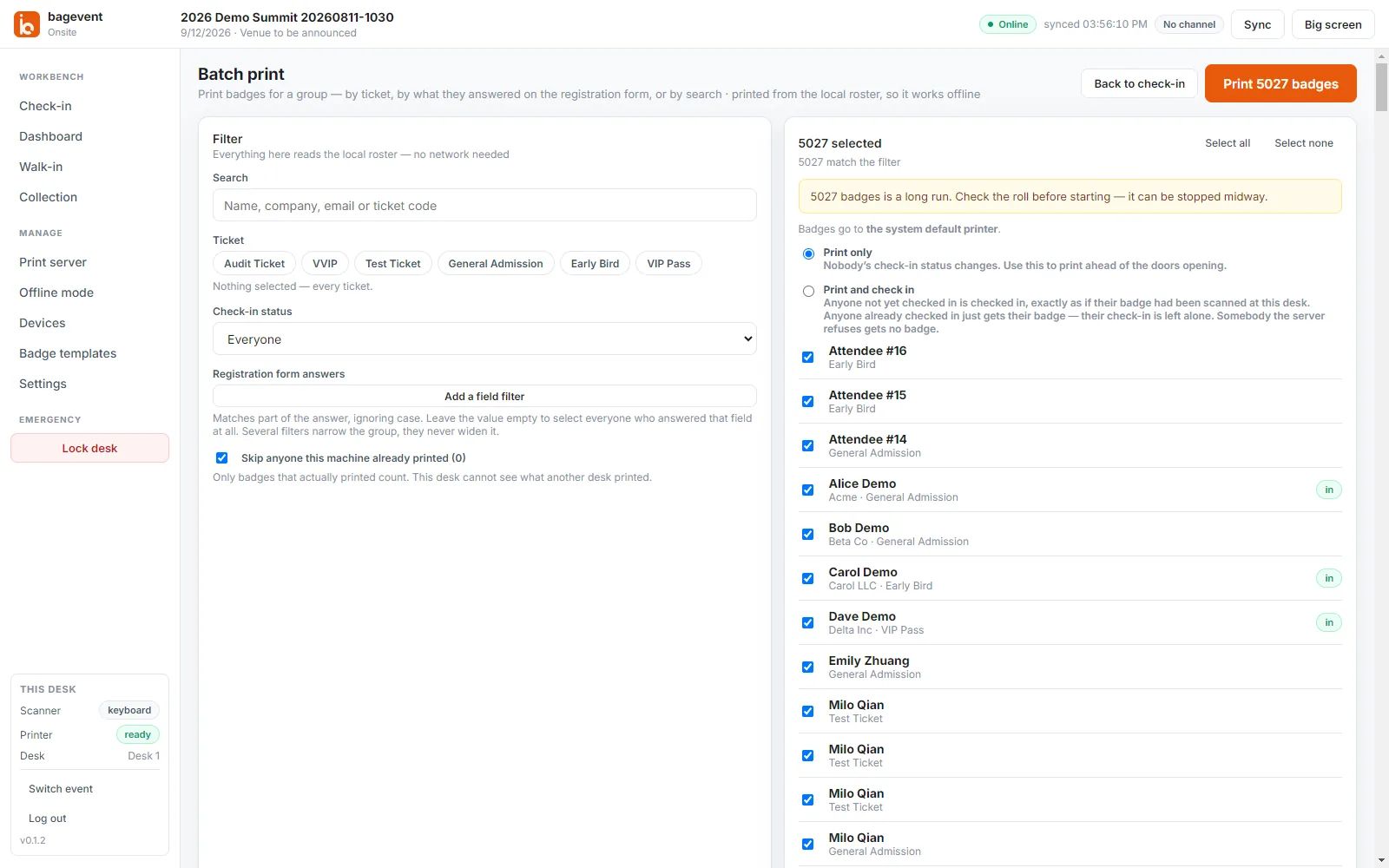
There are two modes, and the difference matters:
| Mode | What it does | When to use it |
|---|---|---|
| Print only | Prints badges and changes nobody’s check-in status | Laying badges out on the table before the doors open |
| Print and check in | Anyone not yet checked in is checked in. Anyone already checked in just gets a badge, with their check-in left alone. Anyone the server refuses gets no badge | Admitting a whole group at once |
- “Skip anyone this machine already printed” is on by default, so re-running a batch does not print duplicates. It only knows what this machine printed — it cannot see another desk’s work
- Check the label roll before a long run. A run can be stopped part-way
- The order is check in first, then print: a jammed printer must never cost somebody their check-in, and someone the server refuses must never walk away holding a badge
You checked in the wrong person
Press Undo check-in on their row. An undone check-in is marked, not deleted — the record stays and still appears in reports, so undoing costs you no history.
Handing out gifts
Go to Collection and scan the attendee’s code. Gift stock is counted on the server, so this stops when the network does — except at collection points the organizer marked as not requiring a connection.
The network drops
Keep scanning. Change nothing. Check-ins queue on the machine and upload themselves when the connection returns.
- The unsynced count at the top starts climbing. That is the system working, not failing
- It returns to zero on its own. If it sits there once you are back online, press Sync once
- Confirm it reads zero before shutting the machine down at the end of the day
Even clearing the local roster keeps them — clearing the roster never throws away work that has not reached the server.
Leaving the desk
Press the red Lock desk at the bottom left. The roster holds every attendee’s name, company and contact details; an unattended desk is that list left open on the table.
Troubleshooting
What actually goes wrong at a desk, and what is actually causing it.
- Phones cannot reach the check-in PC
- Almost always the Windows Firewall rule. Open Print server and look for the yellow banner, then press Allow through firewall. Check-in on the PC itself keeps working throughout, which is why nothing on screen points at the real cause.
- One scan is counted twice
- A slow scan-gun trigger fires two reads. Raise the repeat-scan window in Settings; it is three seconds by default.
- No badge comes out
- Check the printer is ready in Windows, then check that it is not a file printer such as Print to PDF. The print server leaves file printers out on purpose, because a badge routed into a PDF hands the queue nothing.
- The unsynced count will not clear
- The network is still down or the backend is unreachable. Press Sync once; if the number does not move, check the connection. Nothing is lost, and you can keep checking people in the whole time.
- The app says a registration is cancelled
- That is the server's decision, not a fault on the machine. Something is wrong with that person's registration and the organizer has to resolve it in the web app.
- Windows shows a blue warning when installing
- The installer is not code-signed yet, so Windows shows the warning it shows for every unfamiliar program. Choose More info, then Run anyway.
- The roster looks stale after switching events
- Press Sync data once after switching. The roster is per event and is not pulled until you ask for it.
This manual covers BagEvent Onsite v0.1.2. Every screenshot is of the running application. Wording on screen may shift between versions; the way the desk works does not.
Ready to run your next event?
Get started in minutes — or try the live demo to see what your attendees get.
- No credit card required
- GDPR-ready
- Multi-currency